

 Tolulope Michael
What is BitLocker Drive Encryption (2026)?
BitLocker Drive Encryption is a built-in Windows security feature that encrypts your entire hard drive to protect your data from unauthorized access. It works on devices running BitLocker Drive Encryption Windows 11 and BitLocker Drive Encryption Windows 10 (Pro, Enterprise, or Education editions), turning your stored files into unreadable data unless the system verifies your identity.
In simple terms, BitLocker locks your data so that even if someone steals your laptop or removes your hard drive, they cannot access your files without the correct credentials or recovery key.
This matters more than most people realize. Data breaches do not always happen online. Many happen when devices get lost, stolen, or accessed physically. BitLocker closes that gap by making sure your data stays protected even outside your system.

Why BitLocker Matters for Cybersecurity Beginners
Most people focus on passwords and antivirus. Few think about what happens after someone gets physical access to a device.
That’s where BitLocker becomes critical.
Imagine someone steals your laptop. Without encryption, they can remove the drive, plug it into another computer, and access your files within minutes. Passwords won’t stop them at that point.
BitLocker Drive Encryption changes that completely.
When BitLocker Drive Encryption is enabled on your OS drive, your data stays locked at the hardware level. Even if someone removes the drive, they only see encrypted data they cannot read.
From a cybersecurity standpoint, this is one of the first real protections you should understand.
It helps you:
- Protect sensitive files from theft
- Prevent unauthorized offline access
- Meet basic security standards used by companies
- Build a strong foundation in endpoint security
If you plan to move into cybersecurity, tools like BitLocker are not optional knowledge. They represent how organizations protect real data in real-world situations.
This is not advanced security.
This is baseline protection done right.
RELATED ARTICLE: Cryptography Vs Cybersecurity: Importance of Data Security
How BitLocker Drive Encryption Works
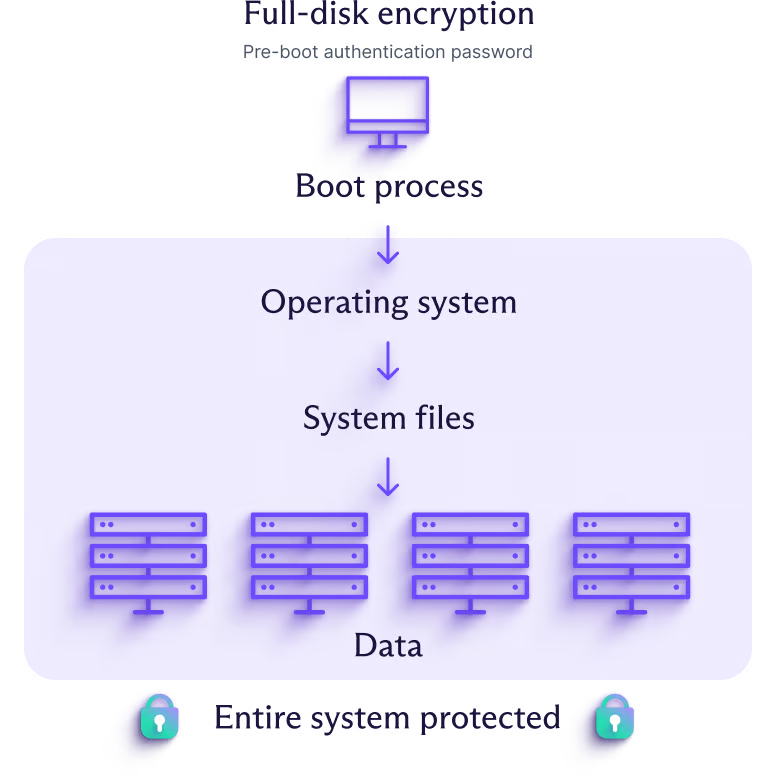
BitLocker works by encrypting your entire drive and controlling access at startup.
When you turn it on, Windows converts all the data on your drive into encrypted code. Only your system can unlock that data after it verifies that everything is safe.
Here’s how the process works:
- You enable BitLocker on your drive
- Windows encrypts the data in the background
- Your system checks for integrity during startup
- If everything looks normal, it unlocks automatically
- If something changes, it asks for a recovery key
At the center of this process is something called the Trusted Platform Module (TPM).
The TPM is a small chip on your motherboard that stores encryption keys securely. It checks whether your system has been tampered with. If it detects any unusual change, it blocks access until you verify your identity.
You can also increase security by adding:
- A PIN at startup
- A USB startup key
- A password (on systems without TPM)
For advanced users, Windows also supports managing BitLocker using the BitLocker Drive Encryption command through tools like Command Prompt or PowerShell. Most beginners won’t need this, but it becomes useful in enterprise or automation environments.
In simple terms, BitLocker does two things at once:
- It locks your data
- It checks if your system is safe before unlocking it
That combination is what makes it powerful in real-world cybersecurity.
BitLocker Requirements (Windows 10 & 11)

Before you use BitLocker, your system must meet a few basic requirements.
First, BitLocker only works on specific Windows editions. You need:
- Windows 10 or 11 Pro
- Enterprise
- Education
If you use Windows Home, you won’t get full BitLocker control. You may see a simpler feature called “device encryption,” but it does not offer the same level of management.
You also don’t need a separate BitLocker Drive Encryption download. Microsoft builds it directly into supported versions of Windows. If you have the right edition, it’s already on your system.
Next is hardware.
Most modern systems include a Trusted Platform Module (TPM) version 1.2 or higher. This chip stores encryption keys and helps your system verify its integrity during startup.
If your device has TPM:
- BitLocker can unlock automatically after verification
- You can still add extra protection like a PIN
If your device does not have TPM:
- You can still use BitLocker
- You will need a password or USB key to unlock the drive
Finally, you need:
- Administrator access to enable BitLocker
- Enough battery power (for laptops during setup)
- A safe place to store your recovery key
If any of these are missing, BitLocker may not start or may limit how you use it.
From a cybersecurity perspective, these requirements ensure that encryption does not just exist, but works securely and reliably.
READ MORE: Cybersecurity Vs Data Which Is A Better Career?
How to Turn On BitLocker Drive Encryption
You can enable BitLocker in a few minutes if your system meets the requirements.
Start by checking if BitLocker is already active. Go to Windows search, type Manage BitLocker, and open it. This is the fastest way to check if BitLocker is enabled or disabled on your system.
If it is off, follow these steps:
- Open Manage BitLocker from the Control Panel
- Locate your operating system drive (usually C:)
- Click Turn on BitLocker
- Choose how you want to unlock the drive (automatic, PIN, or password)
- Save your recovery key (very important)
- Select encryption mode:
- Encrypt used space only (faster)
- Encrypt entire drive (more secure for older systems)
- Start the encryption process
Windows will begin encrypting your data in the background. You can still use your computer while it runs.
If you use BitLocker Drive Encryption Windows 11, the process looks almost identical to Windows 10, with slight design changes in settings.
Once setup completes, your system will protect your data automatically. Each time your device starts, Windows verifies the system before unlocking the drive.
At this point, your data is no longer exposed. Even if someone takes the drive out, they won’t be able to read anything without proper authentication.
This is where most users stop.
But the real difference between safe and risky use of BitLocker comes down to one thing: your recovery key.
BitLocker Recovery Key Explained (Do Not Skip This)

The BitLocker recovery key is the only backup access to your encrypted drive.
If something changes on your system, BitLocker may block access and ask for this key. This can happen if:
- You update your BIOS or firmware
- You change hardware components
- The TPM detects unusual activity
- You forget your PIN or password
This is what people refer to when they ask “what is BitLocker recovery?”
It is a 48-digit numerical key that unlocks your drive when normal access fails.
Without it, you cannot access your data. There is no reset. There is no bypass.
That is why saving it properly matters more than enabling BitLocker itself.
How to Find Your BitLocker Recovery Key
If you already enabled BitLocker, you can still retrieve your key from several places.
Here’s how to find the BitLocker recovery key:
- Microsoft Account
Visit your Microsoft account online. This is the most common place to find it if you signed in during setup.
This answers questions like:
- where do I find BitLocker recovery key
- how can I find my BitLocker recovery key
- USB Drive
If you saved it to a USB, plug it in and open the file.
- Saved File on Your Device
Search your computer for a file that contains the key.
- Printed Copy
Some users print it during setup.
- Work or School Account
If your device belongs to an organization, contact your IT admin.
If you only have a Key ID on the screen, you can still get BitLocker recovery key with key ID by matching it with the one stored in your Microsoft account or organization system.
Many people search for:
- how to get BitLocker recovery key
- how to get the BitLocker recovery key
- how to get recovery key of BitLocker
All of them point to the same truth:
The key must already be saved somewhere. You cannot generate a new one after you lose it.
Important Warning
If you lose your recovery key and your system locks, you lose your data permanently.
No tool, no software, and no technician can unlock it without that key.
From a cybersecurity perspective, this is exactly what makes BitLocker strong.
It protects your data completely, but it also puts full responsibility on you to manage access correctly.
SEE ALSO: What is the Certification Authority CA? Everything You Need to Know in 2026
How to Disable BitLocker Drive Encryption
You can turn off BitLocker at any time, but you need access to the system first.
Disabling BitLocker removes encryption from your drive. Windows will decrypt all data and return it to a normal, readable state.
Here’s how to disable BitLocker:
- Open Manage BitLocker from the Control Panel
- Locate the drive with encryption enabled
- Click Turn off BitLocker
- Confirm your choice
- Wait while Windows decrypts the drive
This process can take time, depending on your drive size. Keep your system powered during decryption.
This answers common searches like:
- how to disable BitLocker
- BitLocker Drive Encryption how to disable
How to Turn Off BitLocker in Windows 11
If you use Windows 11, the steps remain almost the same.
You can:
- Search Manage BitLocker directly
- Or go to Settings → Privacy & Security → Device Encryption / BitLocker
Then:
- Select your drive
- Click Turn off BitLocker
- Confirm and allow the system to decrypt
This covers:
- how to turn off BitLocker Windows 11
- how to disable BitLocker Drive Encryption Windows 11
How to Remove BitLocker Completely
When you turn off BitLocker, you effectively remove BitLocker from that drive.
After decryption:
- Your data is no longer encrypted
- Your system stops using BitLocker protection
This addresses:
- how to remove BitLocker
Important Note
Do not disable BitLocker unless you have a clear reason.
Once you turn it off:
- Your data becomes readable if someone accesses your drive physically
- You lose a key layer of security
From a cybersecurity standpoint, turning off BitLocker should be a deliberate decision, not a casual one.
Common BitLocker Problems (And How to Avoid Them)

BitLocker is reliable, but a few common issues can lock users out or create confusion. Most of these problems come from poor setup or missing information, not the tool itself.
1. Losing the Recovery Key
This is the most serious issue.
If you lose your recovery key and BitLocker locks your drive, you cannot recover your data.
Avoid this by:
- Saving the key to your Microsoft account
- Keeping a backup on a USB drive
- Storing a printed copy in a safe place
This directly relates to:
- how to find the BitLocker recovery key
- how can you find your BitLocker recovery key
2. Unexpected Recovery Screen at Startup
Sometimes your system may suddenly ask for a recovery key.
This usually happens when:
- You update BIOS or firmware
- You change hardware components
- The TPM detects a system change
BitLocker does this to protect you, not to cause problems.
3. TPM Not Available or Misconfigured
If your system does not detect TPM correctly:
- BitLocker may not enable
- Or it may require a password instead
You can fix this by:
- Checking BIOS settings
- Enabling TPM manually if disabled
4. Encryption Takes Too Long
Encryption speed depends on:
- Drive size
- Type of storage (HDD vs SSD)
To speed things up:
- Choose “encrypt used space only” on new systems
5. Not Knowing If BitLocker Is Active
Many users don’t know if their system is protected.
To fix this, always:
- Open Manage BitLocker
- Check your drive status
This answers:
- how to check if BitLocker is enabled or disabled
BitLocker rarely fails on its own.
Most problems happen because:
- Users ignore the recovery key
- Or they don’t understand how it works
If you set it up properly and store your recovery key safely, BitLocker will run quietly in the background and protect your data without interruption.
MORE: How Important is Microsoft Identity Manager to Identity Security?
Can You Encrypt a Flash Drive with BitLocker?
Yes, you can encrypt a flash drive using BitLocker. Microsoft calls this feature BitLocker To Go.
It works just like standard BitLocker, but it protects external drives such as USB flash drives and portable hard disks.
If you’re wondering how can you encrypt a flash drive, follow these steps:
- Insert your USB flash drive into your computer
- Open File Explorer
- Right-click the flash drive
- Select Turn on BitLocker
- Choose a password to unlock the drive
- Save your recovery key
- Start the encryption process
Once encryption finishes, your flash drive becomes protected.
Every time you plug it into a computer:
- You must enter the password
- Without it, no one can access the files
Flash drives are easy to lose.
If you store sensitive files on them without encryption, anyone who finds the drive can open your data instantly.
BitLocker To Go prevents that.
It ensures:
- Your files stay private
- Only authorized users can access the drive
- Your data remains protected even outside your computer
Important Note
You can open a BitLocker-encrypted flash drive on other Windows systems.
Some versions of Windows may allow read-only access, but you still need the password.
From a cybersecurity perspective, encrypting removable drives is just as important as encrypting your main system. It closes another common gap where data leaks often happen.
Should You Use BitLocker in 2026?
Yes, you should use BitLocker if you store any personal, work, or sensitive data on your device.
BitLocker Drive Encryption gives you a strong layer of protection that works silently in the background. It protects your data even when your device is lost, stolen, or accessed physically.
Who Should Use BitLocker
You should enable BitLocker if you:
- Use a laptop for work or school
- Store personal files, documents, or financial data
- Work remotely or travel often
- Want to meet basic cybersecurity standards
For these users, BitLocker is not optional. It is part of baseline device security.
Who May Not Need It Immediately
You may delay using BitLocker if you:
- Use a shared or low-risk device with no sensitive data
- Only store temporary or public files
- Do not have access to Windows Pro or higher
Even in these cases, enabling encryption still adds protection with almost no downside.
Does BitLocker Affect Performance?
On modern systems, BitLocker has little to no noticeable impact.
Most devices with SSDs and TPM handle encryption efficiently. You can run your system normally without performance issues.
Final Cybersecurity Insight
BitLocker is one of the easiest ways to protect your data without advanced technical knowledge.
It does not require constant management.
It does not interrupt your workflow.
But it closes one of the biggest security gaps: physical access to your data.
If you’re learning cybersecurity or building secure habits, enabling BitLocker is one of the simplest and smartest steps you can take.
Don’t Just Learn Cybersecurity. Start Earning From It
You’ve just seen how real security works at the system level.
This is exactly the kind of practical knowledge companies pay for.
If you’re serious about moving into a high-paying cybersecurity role, you need more than theory. You need a clear path, real guidance, and proof it works.
Book a one-on-one strategy session with Tolulope Michael and get a step-by-step plan to break into cybersecurity, even if you’re starting from zero.
Your next move decides everything.
FAQ
Why is my computer asking for a BitLocker recovery key?
Your computer asks for a BitLocker recovery key when it detects a possible security change. This usually happens after a BIOS update, hardware change, or when the Trusted Platform Module (TPM) senses something unusual during startup. BitLocker does this to protect your data from unauthorized access. To unlock your drive, you must enter the correct recovery key.
How do I unlock BitLocker if I forgot my password?
If you forget your BitLocker password or PIN, you can unlock your drive using your recovery key. Enter the 48-digit recovery key when prompted during startup. If you saved it to your Microsoft account, USB drive, or file, retrieve it from there. Without the recovery key, you cannot regain access to the encrypted data.
What triggers BitLocker recovery?
BitLocker recovery is triggered when your system detects a change that could affect its security. Common triggers include BIOS or firmware updates, changes to hardware components, TPM issues, or multiple failed login attempts. These checks ensure that no unauthorized modification has occurred before allowing access to your data.
Can I shut down my PC while BitLocker is encrypting?
Yes, you can shut down your PC while BitLocker is encrypting, but it’s not recommended unless necessary. The encryption process will pause and resume when you turn the system back on. However, frequent interruptions may slow down the process and increase the risk of errors, especially on older systems.
